MS Outlook
Best Practices: Accessibility
Brought to you by DSPS
Introduction: Why is email accessibility important
Considering that email is arguably the most common and frequently used form of communication
at GCC, it is imperative that the intended recipients (students, prospective students,
faculty, staff, administrators, community members) can universally access that information.
Currently, there are a great number of emails distributed across campus that contain
information presented solely in a visual format (pictures). For those with certain
disabilities, and for people using a variety of assistive technology software and
devices, this content is inaccessible. It’s also imperative for GCC to demonstrate
our commitment to providing equitable services and access to information to our students,
staff, and the greater community, as required by Sections 504 and 508 of the Rehabilitation
Act, and the ADA. The following information will help demonstrate some of the simple
steps we can take to ensure that the email content we distribute is accessible to
all. If you have any questions or would like clarification on any of this information,
please contact Scott at sziegler@glendale.edu.
Overview
Font/Contrast
- Use 12 pt. or larger Sans Serif font such as Arial, Verdana, or Calibri
- Do not use color alone to convey meaning. It’s OK to use different colors, but information
presented with color must also be presented textually.
Example: Color used to convey meaning
Red: Required Course
Green: Not Required
Math 900
|
Introductory Calculus
|
Math 904
|
Advanced Calculus
|
Correction:
Course Number
|
Course Name
|
Required?
|
Math 900
|
Introductory Calculus
|
Yes
|
Math 904
|
Advanced Calculus
|
No
|
- Contrast: Ensure that choices of foreground and background colors provide sufficient
contrast.
Good:
| Sally swam up out of sleep. First, she glanced at the clock on the night table and
saw it was quarter past two in the morning |
Sally swam up out of sleep. First, she glanced at the clock on the night table and
saw it was quarter past two in the morning |
Bad:
| Sally swam up out of sleep. First, she glanced at the clock on the night table and
saw it was quarter past two in the morning |
Sally swam up out of sleep. First, she glanced at the clock on the night table and
saw it was quarter past two in the morning |
Embedded Images
If you’re embedding an image in the body of an email, it needs alternative text or
an image description.
Once the image is added to body of email (Insert > pictures > browse to file), right
click on the image and select “Add Alternate Text”
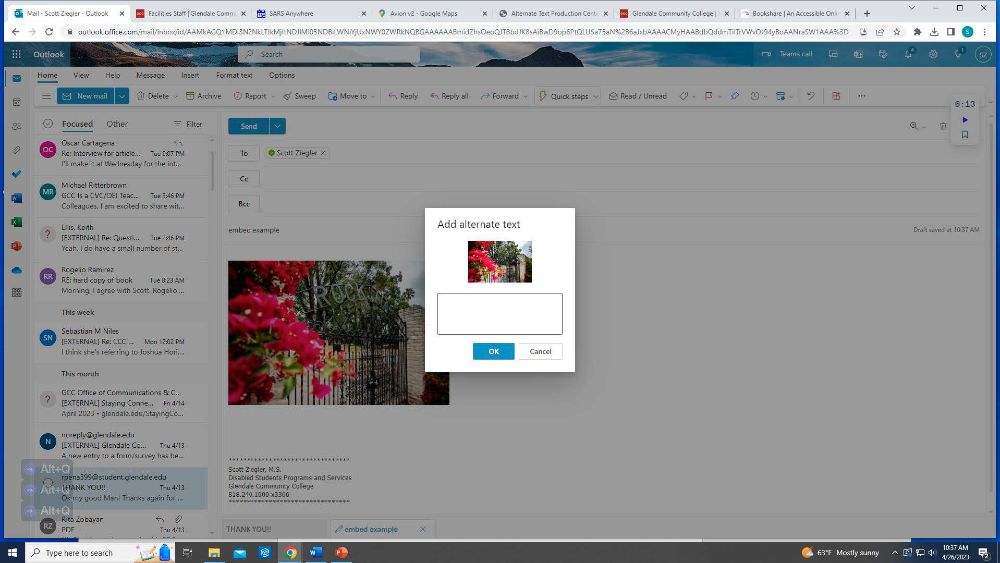
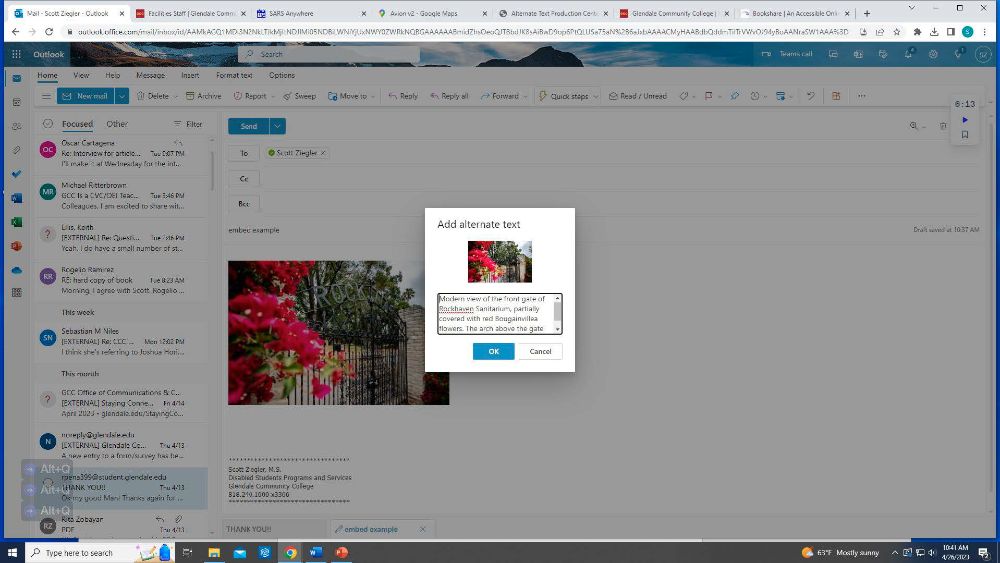
In the text field, write a brief description of the image, emphasizing the important
points.
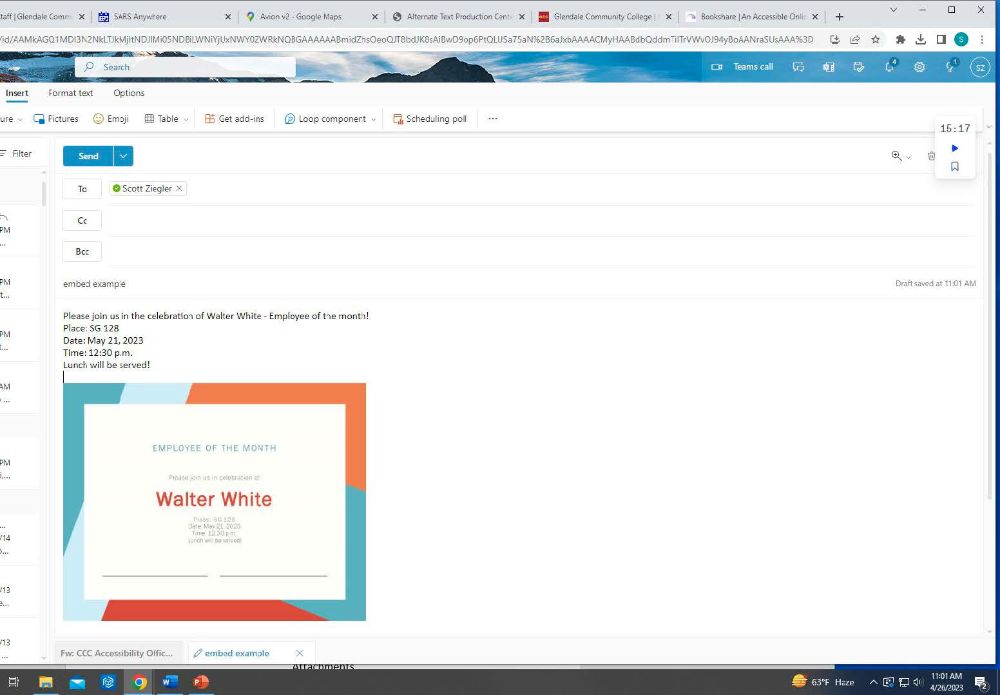
If the image is a flyer or event notification, write the salient info (Who, what,
when, why, Zoom link, etc.) in the body of the email prior to the embedded image.
Attachments
The same accessibility rules that pertain to all electronic documents also apply to
email attachments.
- Attachments should not be image-only scans or pictures (.jpg, .png, etc.) or image-only
PDFs, unless the same information contained in the picture is also presented textually
in the body of the email.
- PDFs are acceptable as attachments IF they have been created or remediated to be accessible.
- MS Office documents are generally OK, but they may also need to be set up properly
with styles, headings, etc. to be truly accessible.
Descriptive URLs
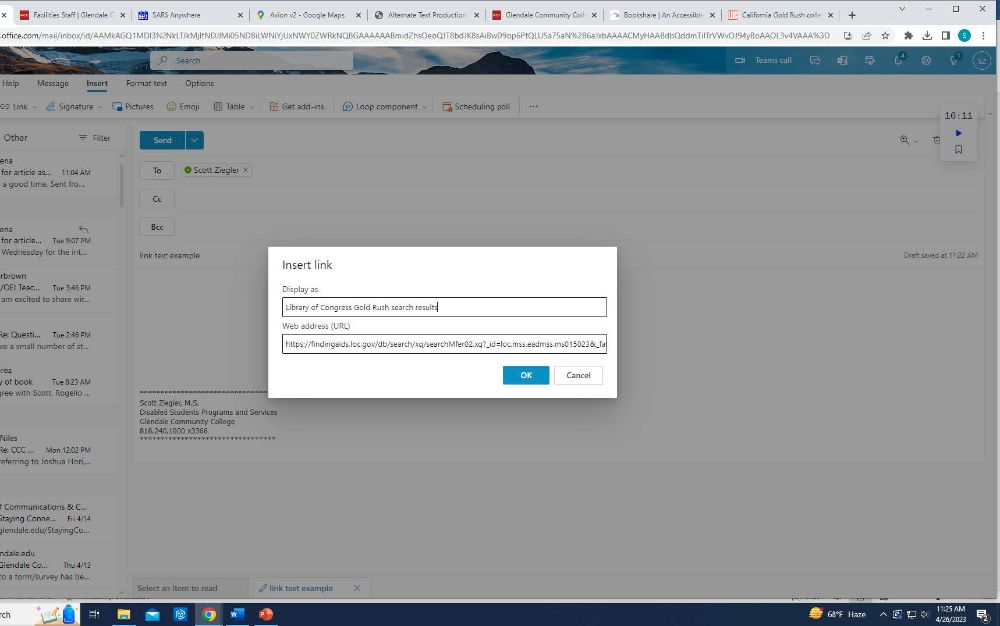
When you add a URL to your email, use a descriptive name rather than the actual URL.
- Select Insert > Link
- Paste the actual URL into the “Web address (URL)” text field.
- In the “Display as” field, type a descriptive word or phrase such as “Library of Congress
Gold Rush search results” rather than just pasting the link:https://findingaids.loc.gov/db/search/xq/searchMfer02.xq?_id=loc.mss.eadmss.ms015023&_faSection=overview&_faSubsection=did&_dmdid=
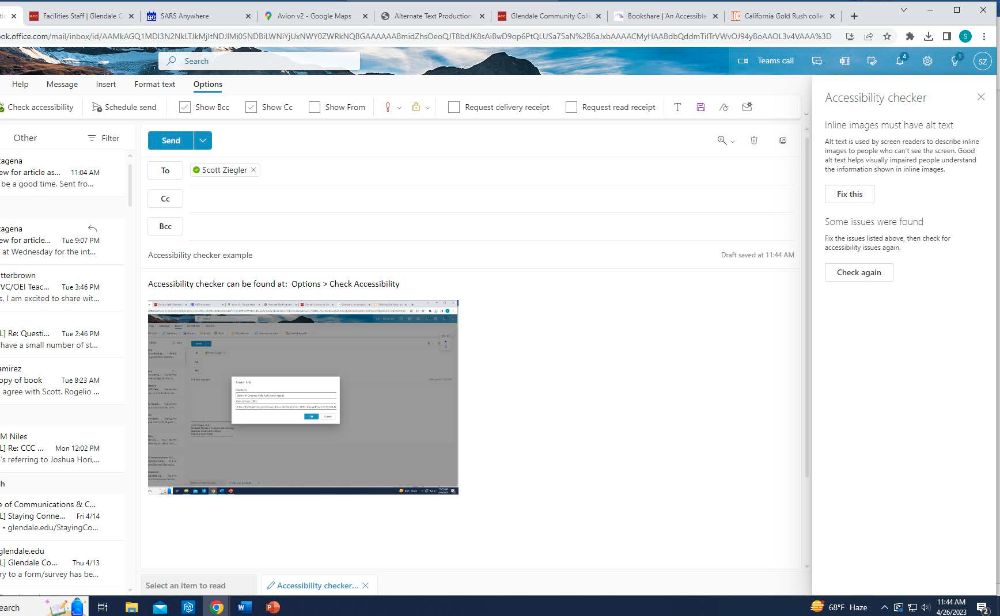
Accessibility Checker
After composing your email, run the Accessibility Checker to find any common issues.
From the main Outlook toolbar, select (Options > Check Accessibility)
Outlook will prompt you if there are items to review, just click “Fix this.”